Canto Resources
Welcome to Canto, the University of San Francisco’s new photo portal.
usfca.canto.com is the new home for USF’s digital asset management (DAM) site, where you can search and download images, as well as access USF Brand resources.
If you are an existing Acquia/Widen user, your email is already in the new system, please visit the site, type in your email address, and click “forgot password”, an automated email from Canto will provide instructions on how to finish setting up your account.
If you are a new user with a USFCA email account, are having trouble logging in, or have any questions about Canto, please reach out to multimedia@usfca.edu
Searching in Canto
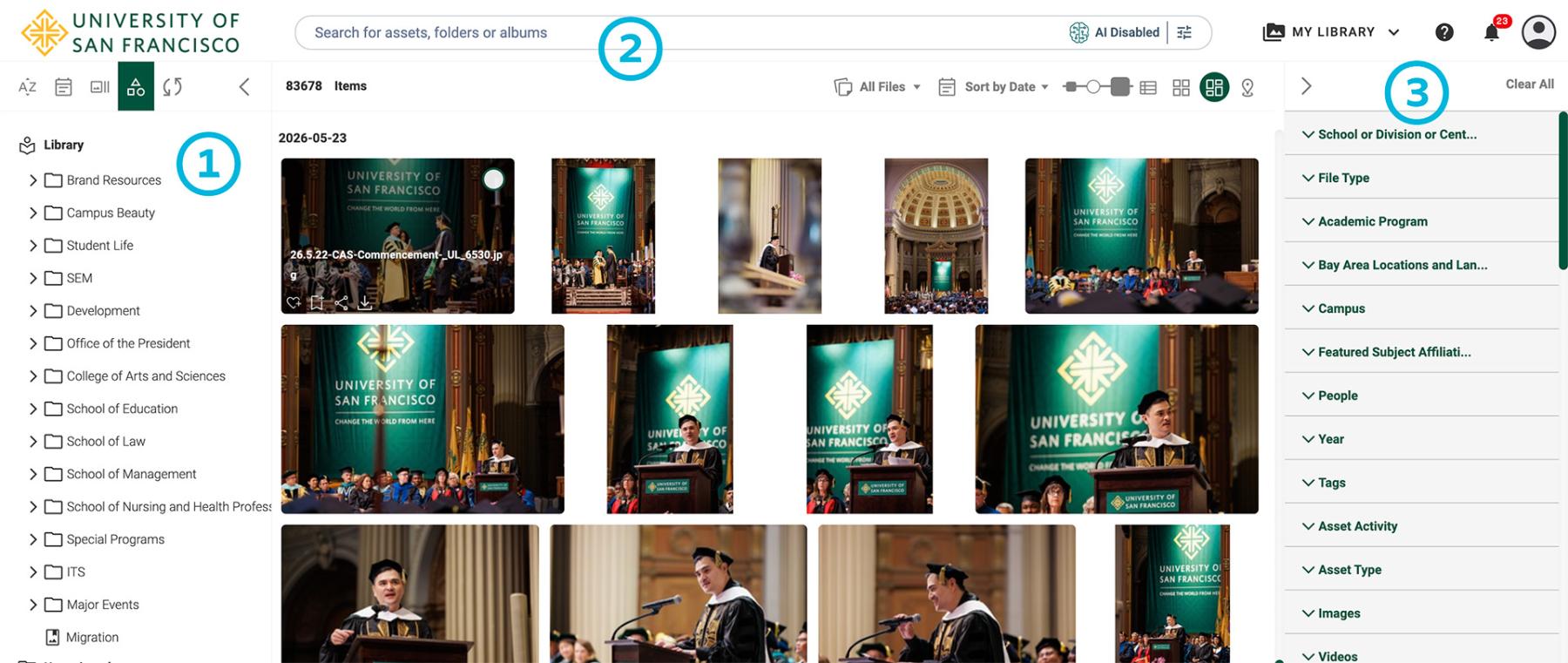
- Folder Navigation (Left Panel)
- By clicking into your school or departments folder, you can access a specific set of images.
- Search Bar & AI Modes (Top Center)
- Basic Search: Use the top bar to quickly surface relevant content.
- Advanced Tools: Click the tool icon (far right of the search bar) to narrow your search to exact matches, the full library, or just your current folder (Within Results).
- AI Disabled: Searches using existing metadata and keywords (e.g., "CAS Classroom").
- AI Enabled: Allows for natural language and descriptive searches (e.g., "a group of students drinking coffee downtown").
- Filters
- Use existing tags and categories to filter assets. You can combine these filters with your folder browsing or search queries to quickly narrow down your results.
Downloading Assets
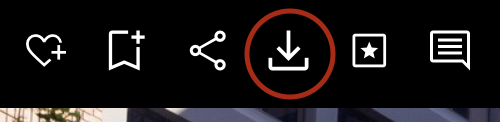
To download a single asset, look for the download button on either the thumbnail or gallery view.
Downloading Multiple Images
- Select each asset in the thumbnail view, and click the download button in the top right corner of the page.
- Create a name for your downloads.
- A new tab will appear which will begin zipping your assets, you must wait for this page to close or for a download prompt to appear before your images will start downloading.
My Collections
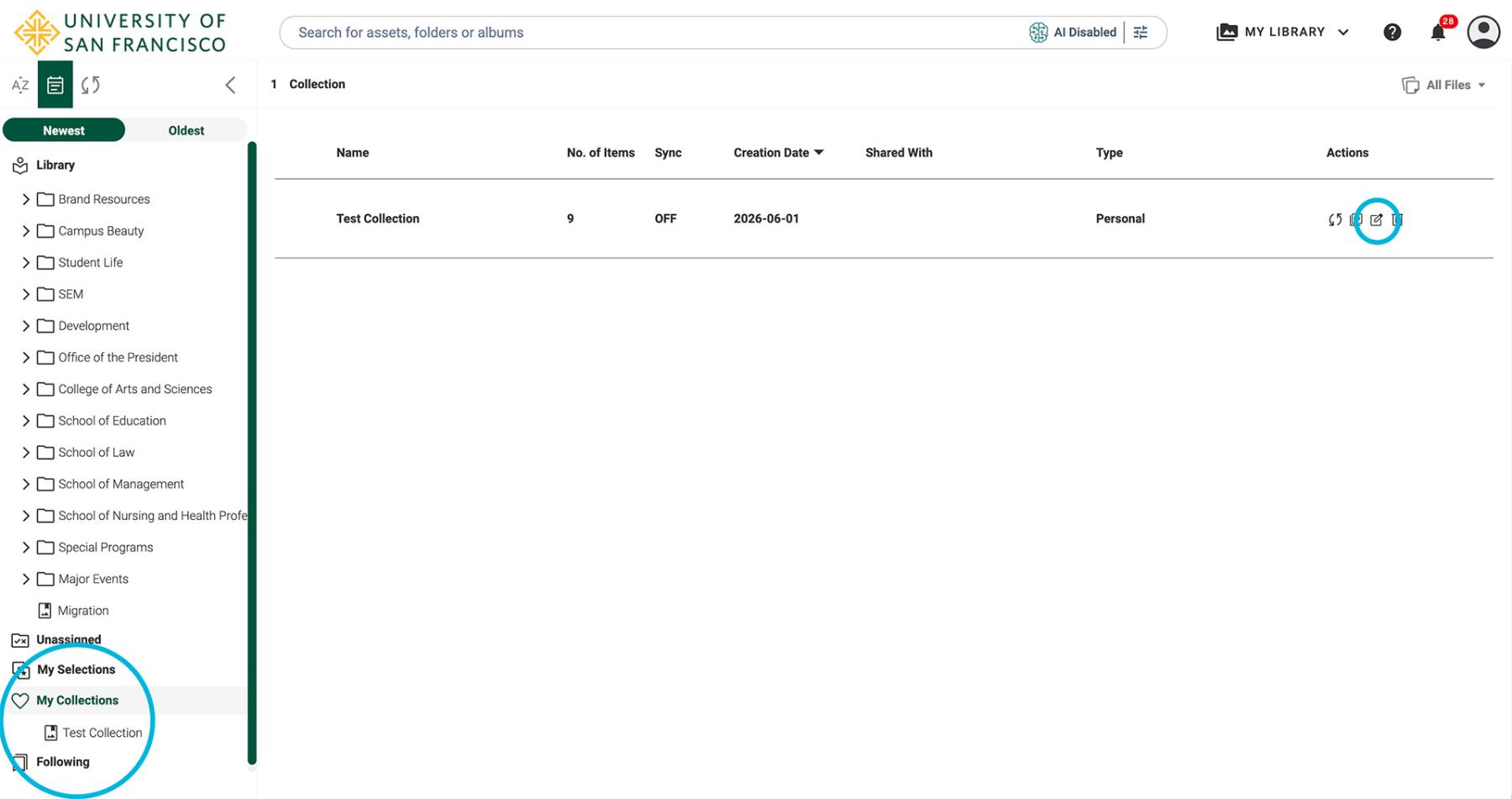
Adding photos to a Collection allows you to curate a personal selection of assets to view, share, or download, all within Canto.

You can view your Collections in the left panel, and share with other Canto users by clicking the edit button on the actions tab.
Asset Upload Guidelines for External Partners
Upload links enable external partners and freelancers to submit University of San Francisco (USF) related images directly to our library without requiring a Canto user account. While this process accelerates image integration into the USF Media Library, it is designed to complement, not replace, your freelancer's standard asset delivery methods.
Note: All assets uploaded to the USF Media Library are accessible to all university users.
Review & Approval Process
To maintain library standards, all submitted images must undergo an approval process before appearing in the public media library.
An asset may be rejected based on the following criteria:
- Privacy & Documentation: The image includes subjects with a reasonable expectation of privacy, and a signed talent release form was not provided.
- Redundancy: The submission includes excessive duplicate or highly similar images.
- Technical Quality: The images fail to meet professional standards (e.g., blurry, under/overexposed, or lacking a clear subject).
How to Request an Upload Link
To request an upload link for your freelance photographer, please email multimedia@usfca.edu with the following details:
- Full name of the uploader
- Email address of the uploader
Once added to the upload portal, the contributor will receive an automated notification with access instructions.
Additional Resources
If you have any questions please reach out to multimedia@usfca.edu